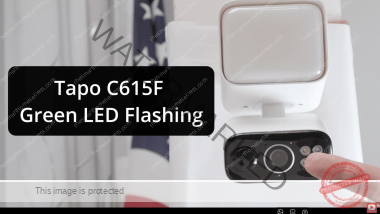
The Tapo C615F is a powerful outdoor floodlight camera from TP-Link that offers excellent security features, including pan-tilt functionality and bright floodlights. Follow these steps to connect it to your Android phone.
Here’s the video with the instructions on How to Setup a C615F on Android.
Step 1: Download the TP-Link Tapo App
Before you start with the hardware, you need the official software.
- Open the Google Play Store on your Android device.
- Search for “Tapo” (the app is by TP-Link).
- Install the app and create a free account. You do not need to pay for a subscription to use the basic features of the camera.

[IMAGE PLACEHOLDER: Screenshot of the Tapo App in the Google Play Store]
Step 2: Prepare the Camera for Pairing
Plug in your Tapo C615F and look at the LED indicator.
- For a successful setup, the LED should be flashing red and green. This indicates the camera is in “Setup Mode” and ready to be discovered [01:02].
Step 3: Add the Device in the App
Once the app is open and you are logged in:
- Tap the “+” button in the top right corner of the home screen.
- Select “Add Device.”
- Choose “Outdoor Cameras” from the category list.
- Scroll down and select the Tapo C615F [00:47].

Step 4: Bluetooth and Wi-Fi Connection
The setup process uses a two-step connection method to ensure stability:
- Bluetooth Pairing: Ensure Bluetooth is enabled on your phone. The app will first connect to the camera via Bluetooth to send the configuration data [01:16].
- Wi-Fi Configuration: Select your home Wi-Fi network from the list and enter your password. The camera will then switch from Bluetooth to your Wi-Fi network to stay online [01:39].
Step 5: Finalize Settings
After the camera confirms “Wi-Fi Connected,” you can customize your device:
- Name your camera: (e.g., “Driveway” or “Backyard”).
- Choose a location: Select the room or area where it is installed.
- Select an icon: Pick an avatar for the device in your app list.
Step 6: Storage Options (Cloud vs. SD Card)
You will be prompted to start a 30-day free trial of Tapo Care for cloud storage. If you prefer local storage:
- Dismiss the cloud trial [02:33].
- Locate the rubber flap on the underside of the camera.
- Insert a high-quality microSD card to store your footage locally [02:41].
Step 7: Testing the Live Feed
Once the setup wizard is finished, your camera will appear on the home screen. Tap on it to view the live feed. You can use the on-screen controls to pan and tilt the camera, moving it left, right, up, and down to check your viewing angles [03:24].
Quick Troubleshooting Tips
- LED isn’t flashing red/green? Use a pin to press the reset button on the camera for 5 seconds.
- Bluetooth failing? Make sure your phone is within 10 feet of the camera during the initial setup.
- Wi-Fi issues? Ensure you are connecting to a 2.4GHz network, as many smart cameras do not support 5GHz bands.
For more visual guides on smart home security, check out the full video tutorial here: https://youtu.be/FMGsgWYdqN0